QR code photo booth sharing has quickly become one of the smoothest ways to get images from the booth onto guests’ phones, without long queues at the sharing screen or messy email forms. In 2026, many modern booth apps let you upload images to an online gallery, generate a unique QR code, and have guests scan it to view and download their photos in seconds.
What is QR code photo booth sharing in 2026?
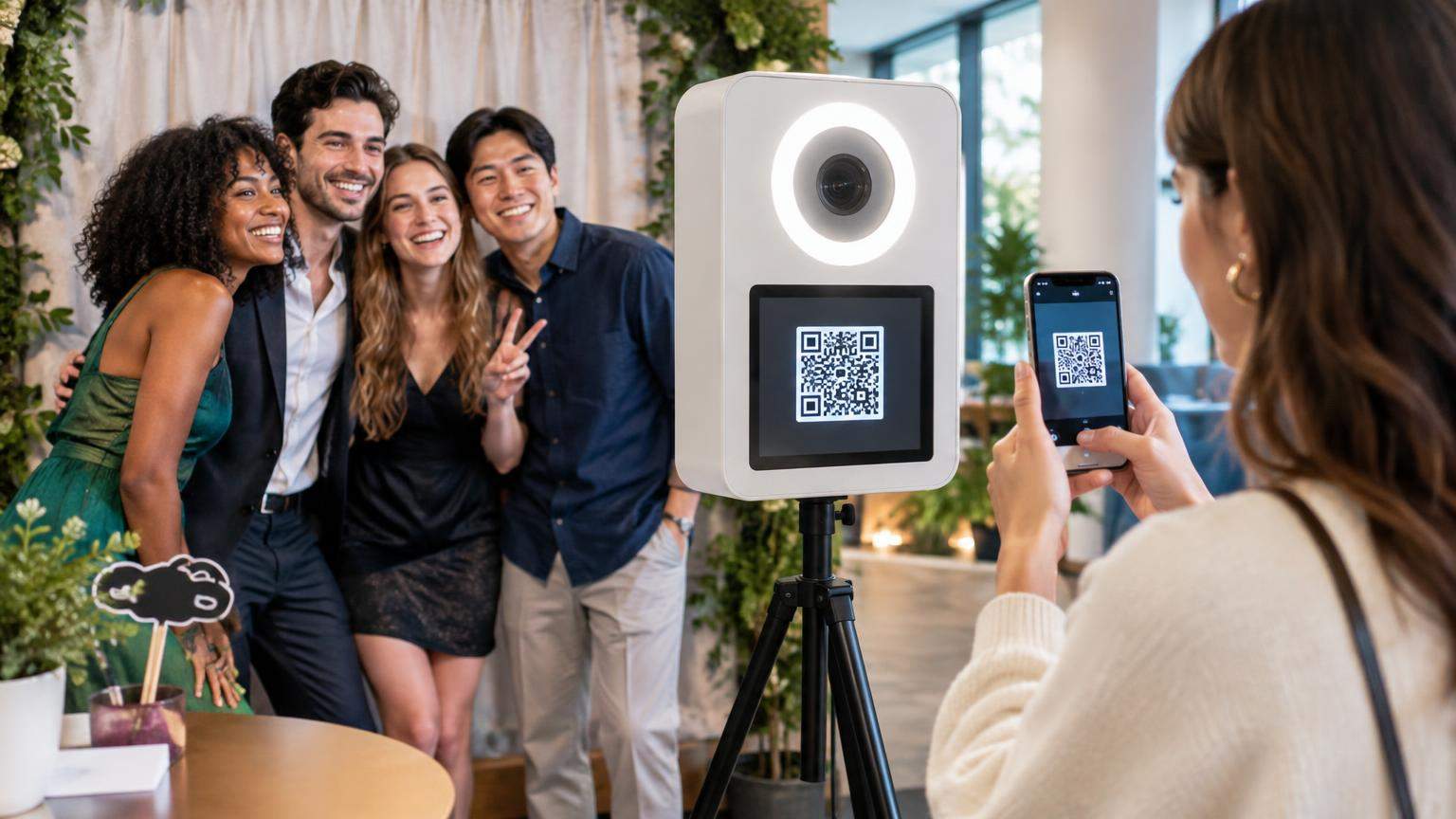
At its core, QR code photo booth sharing is a way to deliver digital photos or videos from a booth to guests using a scannable code instead of typing contact details.
Most current systems follow a similar pattern:
- The booth app captures a still, GIF or video.
- The app uploads that media to an online gallery or microsite (immediately or when it next has internet).
- The gallery or session gets a unique URL.
- The booth encodes that URL into a QR code.
- Guests scan the QR on the booth screen, an info card, or their printout.
- A mobile web page opens where they can view, download or share their images.
Modern platforms like Snappic and Simple Booth treat QR as just one sharing option alongside email and SMS, with a specific toggle for QR sharing in their app settings. [3] [4] [10]
Two main QR models: personal download vs shared gallery
When you hear people talk about QR code photo booth sharing, they are usually referring to one of two distinct models. Understanding the difference will keep your setups clean and your privacy promises realistic.
1. QR codes for individual photo downloads
This is the most common approach in pro apps:
- Each session (one photo strip, one 360 video, one GIF) gets its own unique URL.
- That URL leads directly to a single media item or a tiny personal gallery for that session.
- The booth shows a QR code for that specific session on-screen or on a separate sharing tablet.
- When the guest scans it, they go straight to their own capture and can download or share it.
Snappic’s QR Sharing feature works this way: the app generates a QR per session as one of the available share buttons on the booth. [4]
2. QR codes for shared or guest-upload galleries
Here, the QR code does not point to a single session. Instead, it leads to one of the following:
- A public or semi-private event gallery where all approved booth images appear.
- A personal gallery page that collects multiple shots of the same guest over time.
- A guest-upload link where attendees can add their own smartphone photos alongside booth shots.
Examples in current tools include:
- Simple Booth’s online galleries, where each capture is part of a hosted gallery accessed from share links (including QR). [10]
- Snappic’s AI Sharing and Smart Share, which let guests pre-register via a QR so the system can automatically send each of their later photos to a single personal gallery or contact destination. [6] [7]
When planning your event, clarify with the client whether they expect:
- One QR per photo (private feel, low cross‑exposure), or
- One QR per event or per guest (easier re‑access, more social browsing, but less isolation between guests).
Traditional photo delivery vs QR code sharing
Photo booths started with instant prints; digital delivery came later with email, SMS, and sometimes social uploads. QR code photo booth sharing sits on top of those options and often speeds them up, but it does not automatically replace them.
Common traditional delivery methods
Traditional methods you may already use include:
- Printed strips or postcards – the classic keepsake, but guests still ask for digital copies later.
- Email input on-screen – reliable, but slow to type on a shared tablet and error‑prone.
- SMS delivery – fast to enter (especially for local numbers) but can be constrained by regional texting rules and costs.
- Social uploads (Instagram, WhatsApp via share page, etc.) – often routed through a gallery link rather than direct posting.
Operators on industry forums regularly complain that typing email or phone details slows down the line and increases the risk of typos, while QR scanning tends to be the fastest way to move a photo onto a guest’s phone. [2]
How QR code sharing compares
| Delivery method | Guest action | Speed at busy events | Best use cases | Key limitations |
|---|---|---|---|---|
| Print only | Pick up print from booth | Fast per guest, long queues if reprints | Low-tech weddings, themed parties | No instant digital copy; reprint requests later |
| Email sharing | Type email on booth screen | Slowest; prone to typos | Corporate events needing branded emails | Time-consuming; some spam filtering issues |
| SMS sharing | Enter phone number once | Moderate; still requires keypad use | Domestic events where texting is cheap | Costs, carrier rules, international numbers |
| QR for individual photos | Scan code with phone camera | Very fast once set up | High‑volume parties, 360 booths | Needs smartphone with camera + data |
| QR to shared or personal gallery | Scan once; revisit gallery anytime | Fast at booth; browsing shifts to guest’s phone | Weddings, festivals, multi‑day events | Guests may see others’ images depending on settings |
In practice, most 2026 setups combine methods. For example, you might:
- Use QR for instant guest downloads,
- Use email or SMS as a backup when someone’s phone cannot scan,
- Still print 1–2 copies for albums or branding.
Requirements and preparation
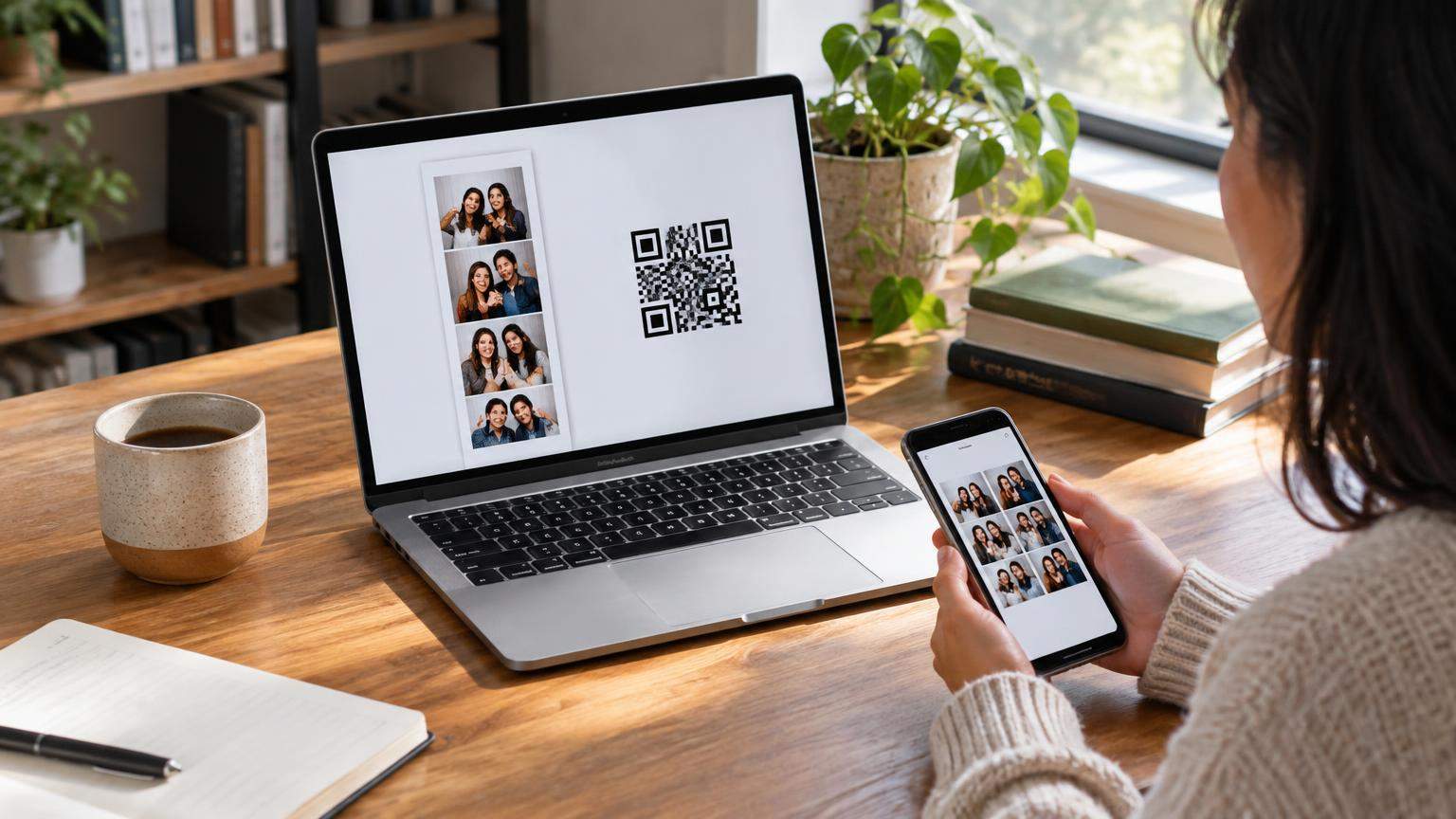
Not every booth platform supports QR code photo booth sharing, and some desktop‑based systems still require DIY workarounds. One Reddit operator using DSLRBooth reported having to upload images to Google Drive and manually create QR codes because their software lacked built‑in QR sharing. [1]
Before selling QR sharing to clients, confirm you have the right components.
1. Compatible hardware
You will need:
- A photo capture device – iPad booth, DSLR/mirrorless booth, 360 rig, or a mirror booth.
- A host device running your booth software – tablet, laptop, or all‑in‑one kiosk.
- A display surface for QR codes – this might be the booth screen itself, a separate sharing station, or printed codes on photo strips/cards.
- Optional: a roaming photographer device (phone or tablet) if your software supports roaming with QR delivery, as Snappic does. [8]
If you’re planning to use QR sharing with a 360 video booth, read our guide on how a 360 photo booth works to understand the equipment, video recording process, editing and digital sharing options.
2. Booth software and gallery service
Look for a platform that explicitly mentions:
- QR sharing or QR links in the share options (per-session or per-gallery).
- Cloud or online gallery hosting.
- Branded microsites or galleries.
Examples from current tools:
- Snappic offers a photo booth app with online galleries, QR Sharing, contactless QR interaction, and advanced features like AI Sharing and Smart Share. [3] [4] [5] [6] [7]
- Simple Booth Classic uses an online gallery where each capture has a link that can be shared via QR, SMS and more. [10]
If your existing app does not offer QR sharing, you can still:
- Upload final images to a cloud folder or web gallery.
- Generate a QR pointing to that gallery URL.
- Print or display that QR at the event (guests browse all images, not just their own).
3. Reliable internet connection (or a clear offline plan)
Cloud‑based QR sharing depends on at least one internet connection:
- The booth needs to upload media to the gallery, or
- The guest’s phone needs to load the gallery link, or both.
Snappic’s documentation notes that features relying on cloud processing and online delivery require connectivity; offline captures typically upload when a connection is available again. [3]
Plan ahead by:
- Testing venue Wi‑Fi and, if possible, bringing a 4G/5G hotspot.
- Agreeing with the client what happens if the connection is weak (for example, delayed delivery by SMS/email after the event).
4. Privacy, consent and retention basics
Regulation varies by country, but as an operator or planner you should at minimum:
- Get clear agreement with the client about who owns the photos and how long you will store them.
- Decide how long galleries will stay online (for example, 30–90 days) and communicate that on the gallery page.
- Offer an easy way for guests to request removal of specific images.
- Avoid embedding obvious personal details (names, emails) directly in QR codes when you can use random IDs or tokens instead.
Step-by-step setup for weddings, parties and corporate events
The exact menu names differ by app, but the flow is surprisingly similar across platforms that support QR code photo booth sharing.
Step 1: Enable cloud gallery or microsite
In your booth software:
- Create the event.
- Turn on the option to upload each capture to an online gallery or microsite.
- Add branding: logo, colours, and event title.
- Set download permissions (for example, downloads allowed, social share buttons enabled, password if needed).
In Snappic, this means enabling online galleries and the sharing microsite for the event. [3]
Step 2: Turn on QR sharing
Next, enable QR as one of the sharing options.
- In Snappic, you can turn on QR Sharing to display a unique code per session when guests reach the share screen. [4]
- In Simple Booth Classic, QR is one of the available share methods from the booth interface. [10]
Decide whether you will:
- Show QR codes on the booth itself,
- Use a separate sharing station,
- Or print QR codes on strips/cards for guests to scan later.
Step 3: Choose individual vs shared / personal gallery logic
You now configure how each QR behaves:
- Individual session QR – each capture has its own URL for a single photo/video.
- Event gallery QR – everyone scans the same QR and browses a shared gallery.
- Personal gallery via registration QR – guests scan a special code once, enter their contact info or selfie, and the system sends later captures to them automatically.
Snappic’s AI Sharing and Smart Share features demonstrate the last model: guests scan a registration QR or link, enter details, and then automatically receive anything they appear in when using the booth or being photographed by roaming photographers. [6] [7] [8]
Step 4: Configure text, branding and instructions
Make the QR journey obvious:
- Add a brief instruction on the booth screen: “Scan this QR to get your photo instantly.”
- Place small printed signs near the queue explaining the steps.
- For shared galleries or guest-upload links, explain whether guests will see others’ photos and whether uploads are moderated.
If you use Snappic’s QR Interaction (contactless) mode, which lets guests control the booth from their phones after scanning a QR, ensure the attract screen clearly explains the tap‑to‑start vs scan‑to‑start behaviour. [5]
Step 5: Test the full guest journey
Before the event:
- Run at least 3–5 test sessions.
- Scan the QR with both an iPhone and an Android phone.
- Confirm that:
- The correct photo or gallery opens.
- Downloads work on both mobile platforms.
- Branding and event text look correct.
- Test on Wi‑Fi and mobile data if possible.
Take screenshots of the final guest view for your client so they know exactly what to expect.
Step 6: Brief your attendants (or clients, for unattended booths)
Anyone supervising the booth should know how to:
- Explain QR scanning to guests who are unfamiliar.
- Trigger a fallback share option (email/SMS) when needed.
- Troubleshoot common scanning or connectivity issues (see the troubleshooting section later).
How guests receive and download their photos
From the guest’s perspective, QR code photo booth sharing should feel simple and predictable.
1. Per‑session QR: fastest for standard booths
Guest experience:
- They pose, the booth takes the photo or video.
- The booth processes the layout or effect.
- At the end screen, a QR code appears with a short instruction.
- The guest opens their phone camera and points it at the code.
- A link pops up; they tap it and land on a simple web page with their media.
- They tap “Download” or long‑press to save, or choose a social share button.
Simple Booth describes QR as generally the fastest way for guests to receive picture links from its Classic app. [10]
2. Shared event gallery QR
Here, a single QR is displayed on signage or prints.
Guest experience:
- They scan the QR at any time.
- The event gallery opens in their browser.
- They scroll to find their image(s) or use search/filters if available.
- They tap to view and download.
This approach is convenient for:
- Smaller weddings, where guests enjoy browsing each other’s photos.
- Corporate activations where you want a single branded gallery link.
However, it offers less separation between guests’ images. Make sure clients are comfortable with that.
3. Personal gallery via registration QR
In more advanced setups (for example with Snappic AI Sharing and Smart Share), guests can receive multiple photos across the event without re‑scanning every time.
Typical flow based on Snappic’s documentation: [6] [7]
- A registration QR is printed on signage, badges, or the booth attract screen.
- Guests scan it once and land on a form.
- They enter their name and contact method (email or SMS).
- They may also take a quick selfie for facial recognition, depending on configuration.
- Whenever they later use the booth or are photographed by a roaming photographer, the system identifies them or matches their token and automatically sends the new media to their chosen destination.
This model is powerful for multi‑day conferences, trade shows, or festivals where people might appear in many photos.
4. QR for guest-upload galleries
Some platforms and DIY setups use QR not for downloading, but for uploading phone photos into an event gallery:
- The event host prints a QR that links to a “Submit your photos” page.
- Guests scan it, grant permission to their camera roll, and upload shots.
- The booth’s professional images and guest phone photos live together in one gallery.
When you offer this, be very clear about moderation (if any) and whether the gallery will be public, private, or only visible to the couple/company.
Private galleries, consent, security and retention
Even if your jurisdiction does not impose heavy formal requirements, handling thousands of images of guests responsibly is good practice and a selling point with corporate clients.
Choosing public vs private access
Options to consider:
- Open gallery – anyone with the link can view the event images. Easiest to manage, but least private.
- Unlisted gallery – not indexed by search, accessible only via QR or shared link (this is typical for many booth platforms).
- Password‑protected gallery – guests need a PIN or code printed on their invite or signage.
- Per‑guest personal galleries – only the guest who receives a link or login can see their images; commonly implemented via Smart Share–style systems. [7]
Match the level of access to the event type. For a private wedding, an unlisted or password gallery is usually enough. For HR‑sensitive corporate events, personal galleries and stricter retention limits may be more appropriate.
Collecting and explaining consent
Consider these habits:
- Add a short notice on the attract screen or nearby signage explaining that using the booth implies consent for capture and storage under the event’s terms.
- For brand activations, tell guests if their images may appear on social channels or displays, and give an opt‑out path (for example, a clearly published contact email).
- Ensure your contract with the client covers whether images can be used for your own portfolio and marketing.
Setting retention periods
Decide in advance how long you will:
- Keep galleries online (for example, 30, 60 or 90 days by default).
- Store backups on your own drives after the gallery expires.
Document this in your contract and on the gallery page, for example: “Gallery available until 31 March. After that, images may be archived offline and not accessible via this link.”
Internet failures, QR scanning problems and troubleshooting
Even well‑planned QR deployments can hit snags. Here are the issues you are most likely to see and practical ways to handle them.
Problem 1: Weak or no internet at the venue
What happens
- The booth may capture images but cannot upload them immediately.
- Guests scan the QR and either see an error or a placeholder page.
What you can do
- Check whether your software queues uploads for later. Snappic, for example, is designed around cloud galleries and uploads media when it has connectivity. [3]
- Explain to guests that they will receive working links by SMS or email once you get back online.
- For critical events, bring a dedicated hotspot and, if possible, a second carrier SIM as backup.
Problem 2: Guests’ phones do not scan QR codes
What happens
- Some guests open their camera but nothing happens.
- Others may not know where QR scanning is on their particular device.
What you can do
- Show them how to open the stock camera app and hold steady until a link appears.
- If that fails, offer:
- Email or SMS sharing from the booth,
- A short gallery URL typed manually into their browser,
- Or a separate device at the sharing station where an attendant helps.
Problem 3: Software without QR support
As mentioned earlier, not all photo booth software includes QR sharing. One Reddit user running DSLRBooth described having to build a workaround using Google Drive and hand‑made QR codes because built‑in QR options were not available. [1]
Workaround ideas
- Use your existing software for capture and printing.
- Periodically export images to a folder synced with a cloud service or gallery.
- Generate a QR pointing to that gallery URL (with a generic QR generator).
- Print this QR on signage or add it to print designs.
Guests will then browse a shared gallery, not private links, but they still get convenient phone access.
Problem 4: Confusion between QR types at the same event
If you mix multiple QR codes (for registration, shared gallery and per‑session downloads), guests can easily scan the wrong one.
Mitigation tips
- Use different colours and labels for different QR purposes (for example, blue “Register once”, gold “Get this photo”).
- Keep the most important QR visually dominant.
- Train attendants to repeat short scripts: “Scan the gold code on the screen for this photo; the blue poster is only for registering once at the start.”
How to evaluate services, features and costs
When comparing platforms for QR code photo booth sharing, focus on four areas: features, reliability, usability, and pricing structure.
Features to look for
Useful QR‑related capabilities include:
- Per‑session QR sharing to unique gallery pages. [4] [10]
- Event‑level gallery links that can be turned into printed QRs.
- Contactless control via QR (guests use their own phones to trigger the booth), as offered by Snappic’s QR Interaction mode. [5]
- AI/Smart‑Share style registration flows that tie multiple captures to the same guest via QR or facial recognition. [6] [7]
- Roaming photography with QR delivery, allowing photographers to capture guests away from the booth and still send images via the same sharing system. [8]
Reliability and support
Check for:
- Clear documentation and support articles for QR features (Snappic, for example, publishes dedicated guides for QR Sharing, QR Interaction, AI Sharing and Smart Share). [4] [5] [6] [7]
- Status pages or community feedback about downtime.
- Active update logs or changelogs showing recent improvements. [8]
Pricing models
Vendors structure QR features differently:
- Some include basic QR sharing in all plans but keep advanced options (like AI Sharing or Smart Share) for higher tiers. [9]
- Others bundle QR with general online gallery access.
When reviewing pricing pages, look specifically for:
- Mentions of cloud storage or online galleries. [3] [9]
- “Contactless QR codes” or similar in the plan comparison. [9]
- Limits on events, uploads, or storage that might affect heavy users.
Instead of focusing purely on the cheapest option, price in:
- The time saved at events with smoother sharing,
- Fewer post‑event “Can you send me my photo?” emails,
- And the value of a better guest experience for premium clients.
Practical event examples (2026‑style setups)
To help you visualise real‑world layouts, here are two grounded scenarios based on documented platform capabilities, plus one clearly labelled hypothetical DIY case.
Example 1: Corporate conference with AI Sharing (based on Snappic)
Features drawn from Snappic’s AI Sharing and Smart Share documentation: [6] [7] [8]
- At registration, delegates see a sign with a QR code: “Scan once to get all your photos.”
- They scan, fill in their name, company and preferred contact method.
- The platform prompts them for a quick selfie to help recognise them in later images (depending on configuration).
- Throughout the day, delegates visit the brand‑wrapped booth or get photographed by roaming staff using the same app.
- The system automatically matches captures to the right delegate and sends each image or clip to the delegate’s personal gallery link via email or SMS.
- A central online gallery (with sponsor branding) lets the organiser review images; the public link is optional.
This kind of setup is attractive to sponsors because every interaction drives guests back to a branded microsite or email.
Example 2: Wedding with Simple Booth–style QR gallery
Based on Simple Booth Classic’s gallery and QR‑sharing flow: [10]
- The couple wants physical prints and easy digital downloads.
- The operator sets up Simple Booth Classic with an online gallery and enables sharing via QR, SMS and email.
- Guests take photos; at the share screen, they see a QR and instructions: “Scan to get this picture on your phone.”
- Most guests simply scan and save to their camera rolls.
- For older guests or those who struggle with scanning, the attendant offers to send the image by email or SMS instead.
- After the wedding, the operator sends the couple a link to the full online gallery. They share it in a thank‑you message to guests.
Example 3 (hypothetical): DIY DSLR booth with Google Drive QR
Inspired by a Reddit operator who reported that their DSLRBooth setup did not have native QR sharing and required a manual workaround. [1]
- A small event organiser runs a DSLR‑based booth without QR options.
- They configure the software to save final images into a local folder that syncs with a cloud drive.
- Before the event, they create a shared view‑only gallery link and turn that into a QR code.
- They place the QR on signage next to the booth.
- Guests scan the QR throughout the night to see and download any images that have already synced.
This approach lacks per‑guest privacy and relies on sync speed, but it is an inexpensive way to approximate QR gallery access when your main software does not support it.
Suggested images and alt text
You can brief your design or media team with concepts like:
- A booth screen showing a share page with a large QR icon alongside email and SMS buttons.
- ALT: “Photo booth interface with QR code photo booth sharing option highlighted on the share screen.”
- A candid shot of a guest in formalwear scanning a QR displayed on a photo booth screen at a wedding.
- ALT: “Guest at a wedding scanning a QR code to download their photo booth pictures.”
- A simple diagram or illustration: booth → QR → smartphone → gallery icon.
- ALT: “Diagram showing how QR code photo booth sharing sends pictures from the booth to a guest’s smartphone gallery.”
Frequently Asked Questions
Do all photo booth apps support QR code sharing?
No. Many modern iPad‑ and cloud‑based apps offer QR sharing, but some popular desktop tools still do not. One DSLRBooth user, for example, reported having no built‑in QR option and resorting to a Google Drive + QR workaround. [1] Always check your specific vendor’s feature list.
Do guests need a special app to scan QR codes?
Generally, no. Most modern iOS and Android phones can scan QR codes directly from the built‑in camera app or a system‑level scanner. However, a few guests may have scanning disabled or use older devices, so keep SMS/email sharing as a backup.
Will QR sharing work if the internet goes down?
It depends on the platform and where the outage occurs:
- If the booth is offline but phones are online, guests might scan a QR and see a gallery page that has not updated yet.
- If guests have no data signal, they cannot load the link even if your booth uploads successfully.
Cloud‑based tools like Snappic are designed to upload when a connection exists; you can still capture offline and deliver once you reconnect. [3]
Can I use QR sharing and prints at the same time?
Yes. Many operators combine QR download links with traditional prints. You can show the QR on the booth screen, on a separate sharing station, or even embed a unique QR for each strip layout if your software supports it.
How long should I keep online galleries live?
There is no universal rule. Many operators keep galleries live for 30–90 days, then archive or delete them. Whatever you choose, state it clearly in your contract and on the gallery page.
Checklist and next steps
Use this condensed checklist when planning your next QR‑enabled booth:
- [ ] Confirm your software supports the type of QR code photo booth sharing you want (per‑session, event gallery, personal galleries).
- [ ] Enable and test online galleries/microsites.
- [ ] Turn on QR sharing and verify it works on both iOS and Android. [4] [10]
- [ ] Decide on privacy level (open gallery, password, or per‑guest links) and retention period.
- [ ] Prepare venue connectivity (test Wi‑Fi, bring hotspot, plan offline fallback). [3]
- [ ] Print clear instructions and signage explaining what each QR does.
- [ ] Brief attendants on explaining QR scanning and using backups (SMS/email).
- [ ] After the event, send the host a summary: gallery link, expiry date, and any download stats your platform provides.
Delivering a smooth QR experience is less about flashy tech and more about reducing friction for guests. If you pick the right platform, test thoroughly, and communicate clearly, QR code photo booth sharing can make your booths feel modern, fast and easy to use for weddings, parties and corporate clients alike.
Disclaimer
This article is general guidance based on publicly available documentation and operator reports from third‑party platforms. Specific features, pricing, privacy controls and QR options vary by vendor and plan level and may change over time. Always review your chosen photo booth software’s current documentation, terms of service and data‑handling policies before promising particular QR code photo booth sharing features or retention periods to clients, and consult a qualified legal adviser for jurisdiction‑specific privacy or contract questions.
Sources and Further Reading
Primary and supporting references. Verify time-sensitive information at the original publisher.
- 1kycfsd — www.reddit.com
- What Would You Like In A New Photobooth Software — www.reddit.com
- Photo Booth App — www.snappic.com
- 6616208 Qr Sharing With Snappic — help.snappic.com
- 4237091 Setting Up A Qr Interaction Contactless Photo Booth — help.snappic.com
- 6068047 How To Set Up Ai Sharing — help.snappic.com
- 12885367 Smart Share — help.snappic.com
- Introducing Roaming Photography — changelog.snappic.com
- Pricing — www.snappic.com
- 8207982 Receiving Pictures From The Classic App — help.simplebooth.com
Research date: October 18, 2026 (UTC). Links may change.